Runs offline
Songs, Bibles and backdrops all sit on your own disk.
Worship presentation software that lives on your own computer.
Built for whoever is at the laptop on Sunday.
Free, no time limit · Plus $9.99/mo per computer · macOS and Windows
Songs, Bibles and backdrops all sit on your own disk.
Nothing reaches the room until you send it.
The KJV is offline in every plan, as verse slides or a scrolling reading. More versions to download.
The Greek or Hebrew behind any word, one tap away.
Design it once with fill-in fields. Type the name, send it.
To YouTube, Facebook or any RTMP address, to a file, or over NDI. One click each.
A camera behind the words or beside a lower third. Preview it, then Take it.
Pick what the stage sees, or design it. Up to six stage screens.
On every phone in the band, transposed live, with StagePro Connect.
Songs, scripture and Strong’s, all from the same place.
Themes set the type. A moving loop, a photo or your own video goes behind it.
No account, no cloud, nothing tracked.
This is how the booth actually works. Space moves the preview, Enter sends it live, and the room sees nothing until you say so. Try finding the verse the speaker just called and quietly moved on from.
Each song is one item in the setlist and its verses are its slides. Space walks through them and rolls on to the next item, exactly as the app does. Shown in Classic, StagePro’s default theme. Scripture is the KJV, which ships with every plan.
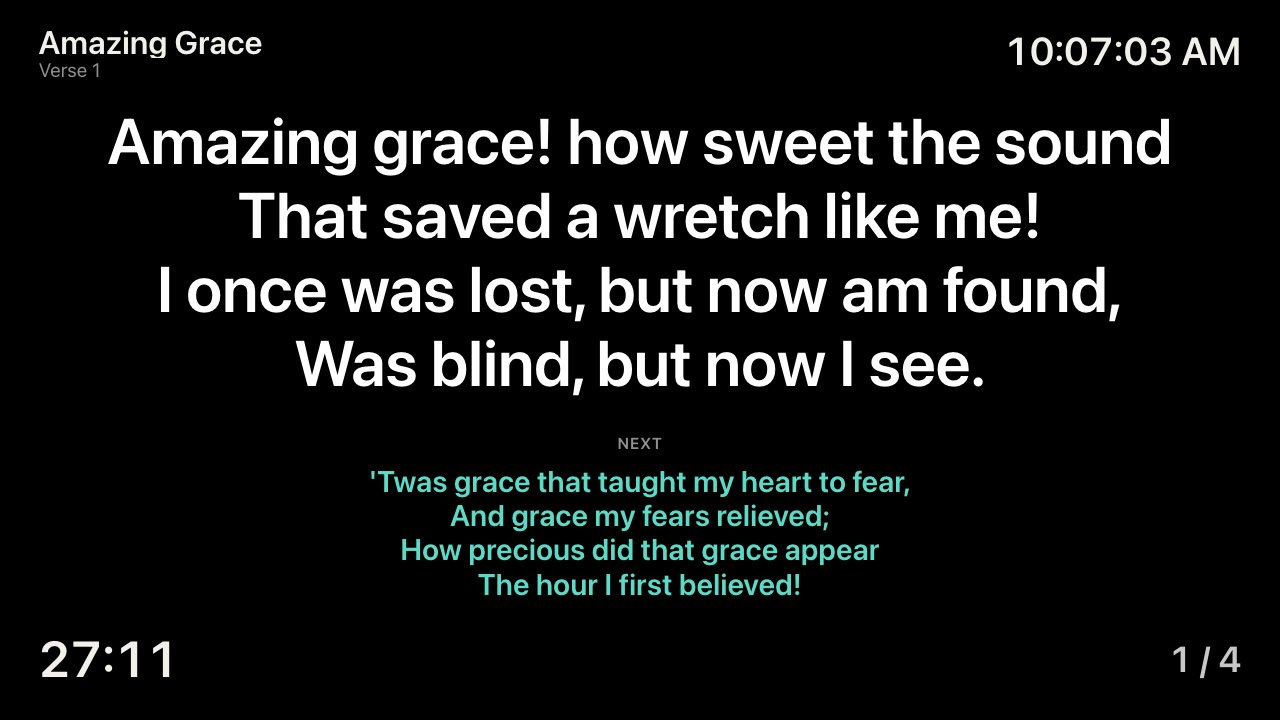
The room gets the words in your theme. The stage gets the layout you choose: here the verse now, the verse next, a countdown and the time. The stream goes straight to YouTube or Facebook, with a camera behind the words if you like, or to OBS on solid black, ready to key. Every picture below is the app’s own output, captured while it ran.
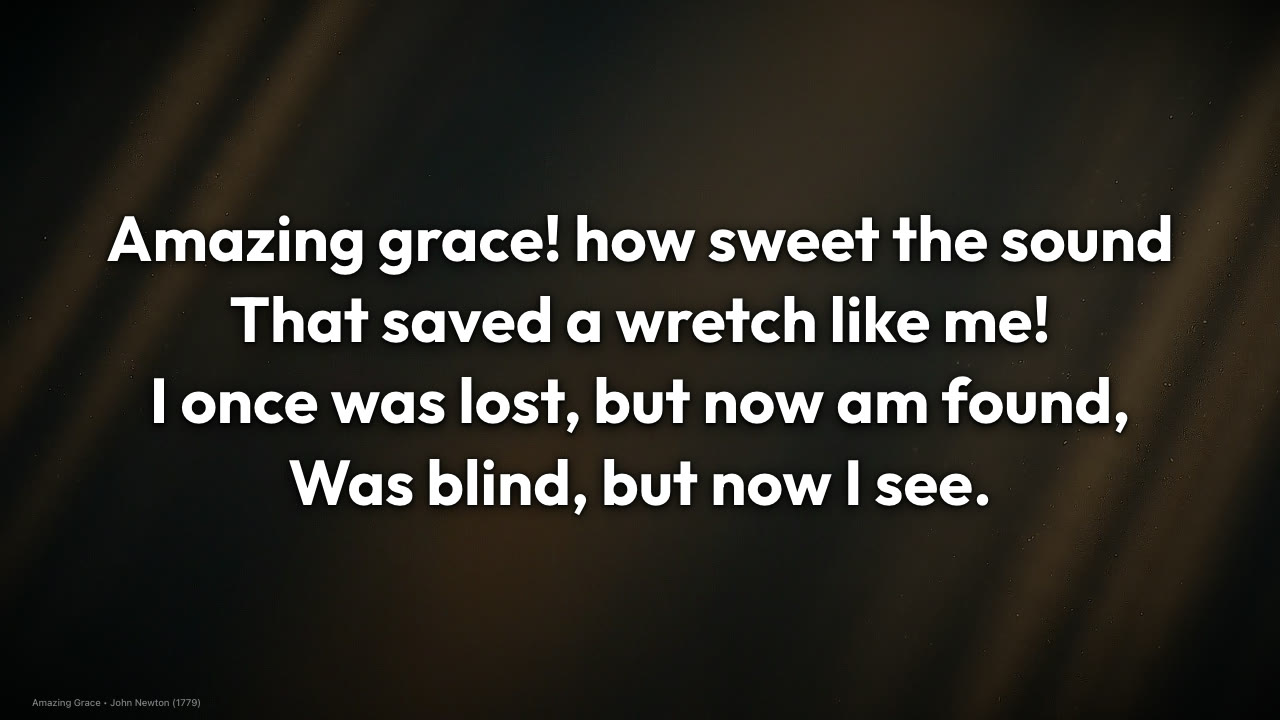
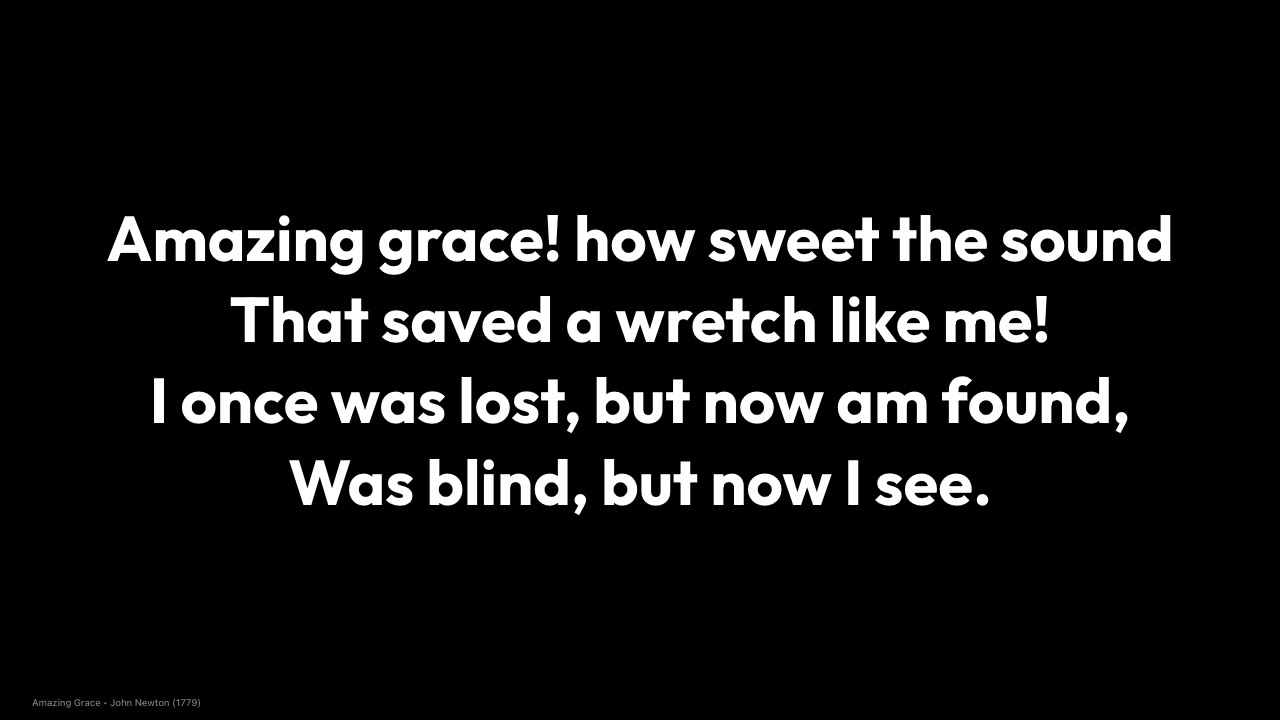
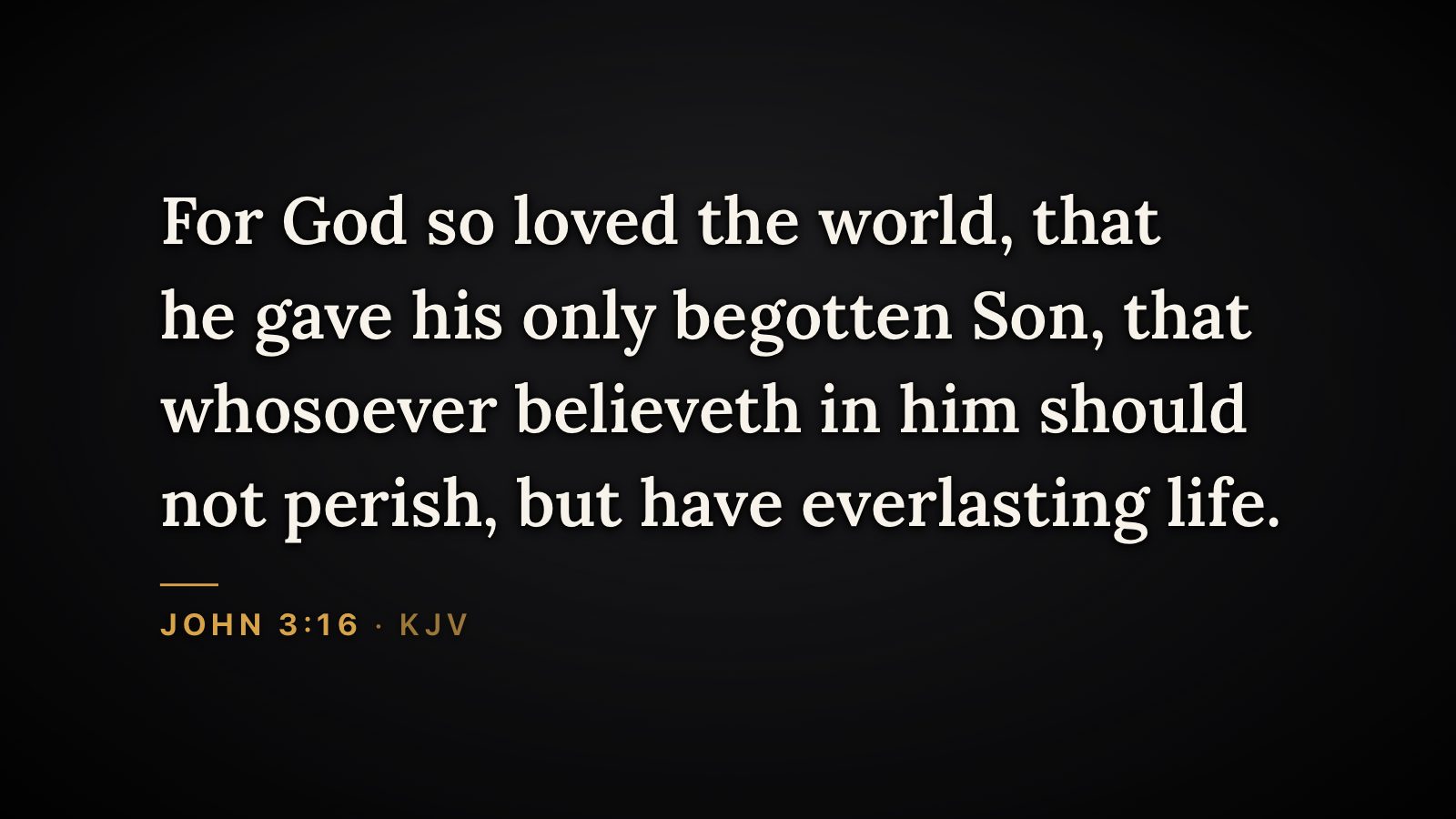
A theme sets the type; a backdrop sits behind it — a loop, a photo, a colour or your own video. Five pairings, each one captured straight off the projector output.
Each musician scans a QR code with StagePro Connect and follows along on their own phone, with live transpose, capo voicings and the Nashville Number System. Or put the chord view on a second screen and be done with it.
When the screen sits behind the people on stage, the Stage Wall theme holds the lyrics up where the back row can still read them.
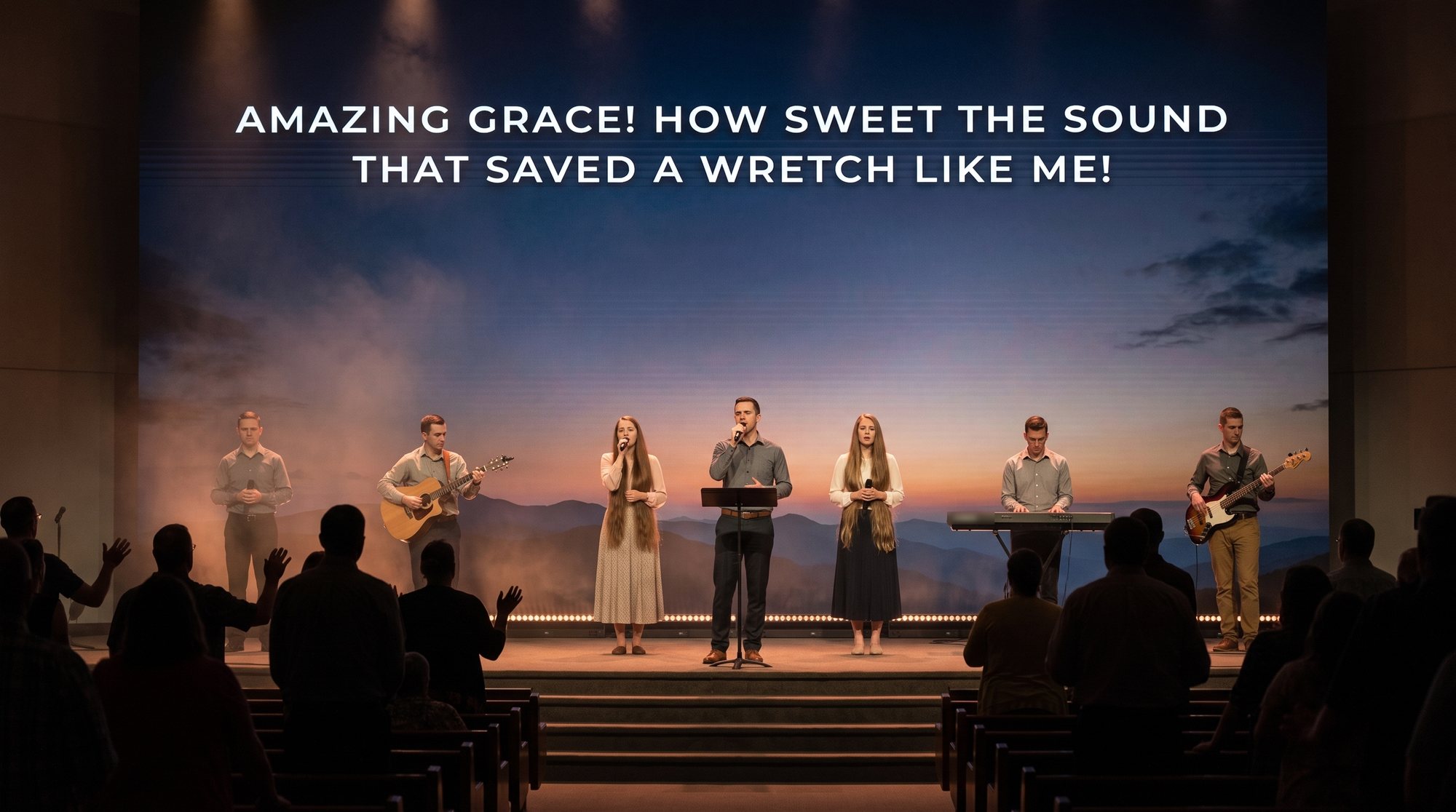
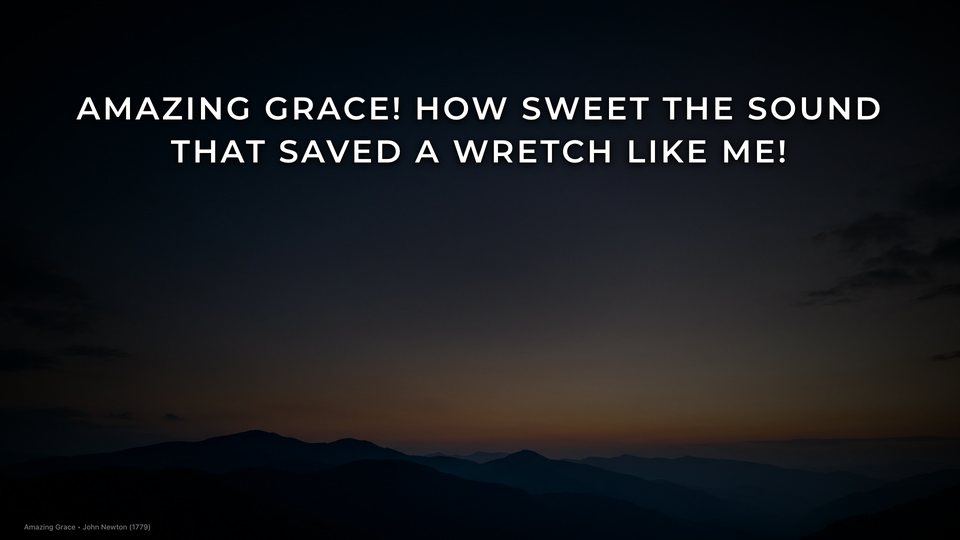 Stage Wall theme
The slide is StagePro’s. The room is an illustration, drawn to show that slide on a real stage wall.
The speaker quotes half a verse and keeps going. Type whatever you caught; StagePro finds the verse and has it ready to send.
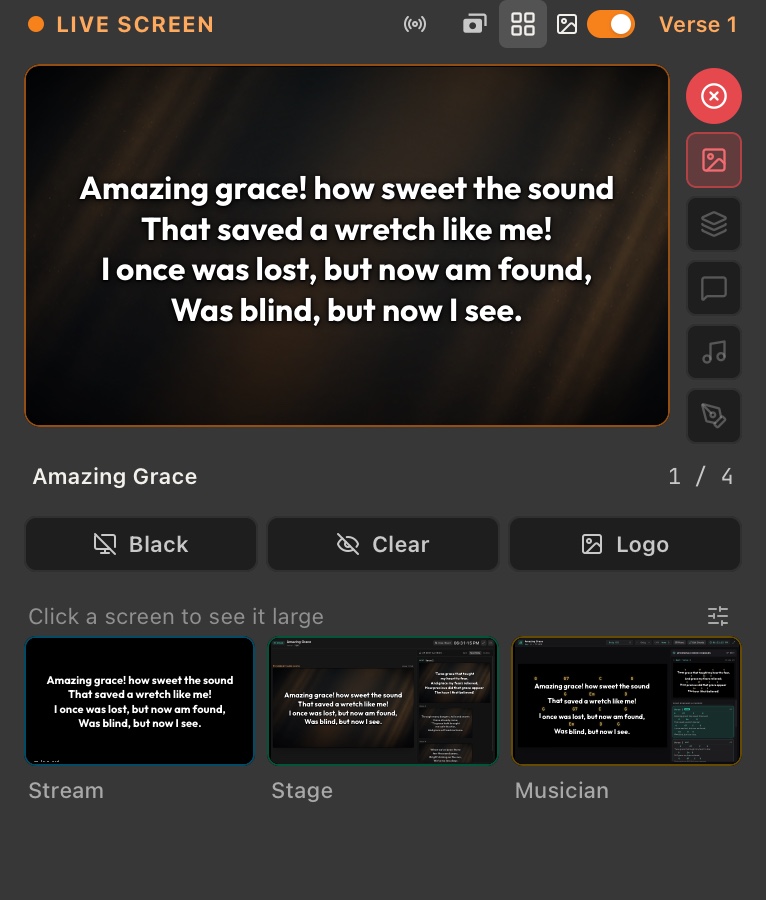
See what the room, the stream, the stage and the musicians are each looking at without leaving your chair. The small screens sit under Live and follow every slide.
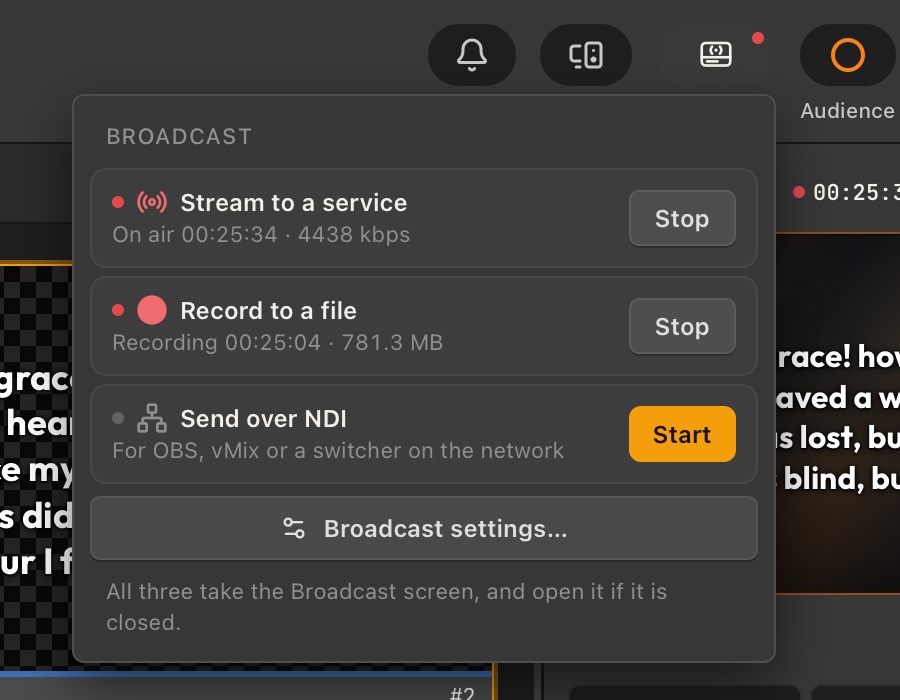
The Broadcast button in the toolbar starts the stream, the recording and NDI, and shows how each one is doing while it runs.
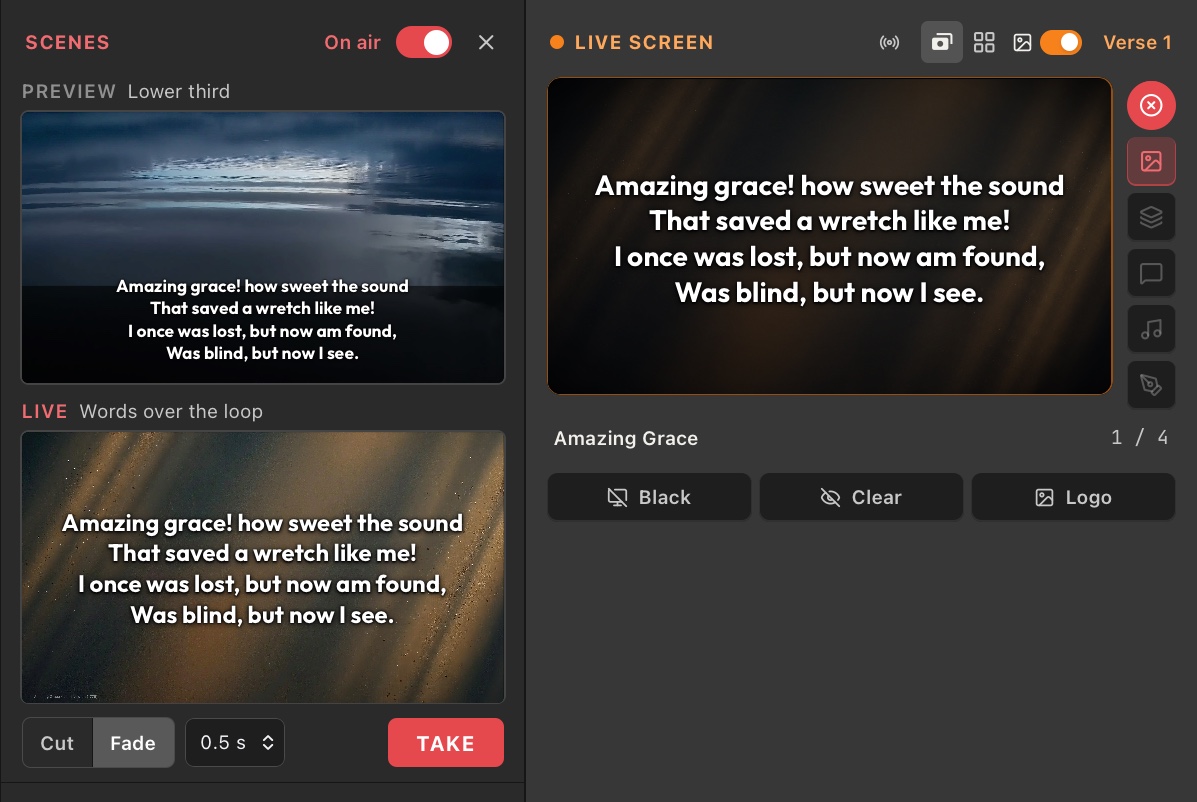
Put a camera, a video or another screen in a scene, with the words over it or as a lower third. Set it up in preview, then Take it live with a cut or a fade.
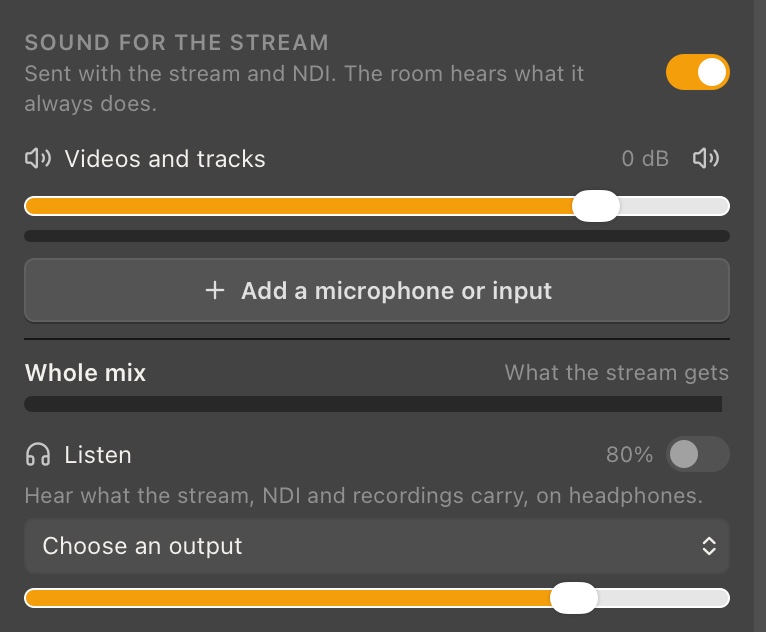
Microphones, the app’s own music and videos, mixed for the stream and the recording, with a meter on each and one for the whole mix.
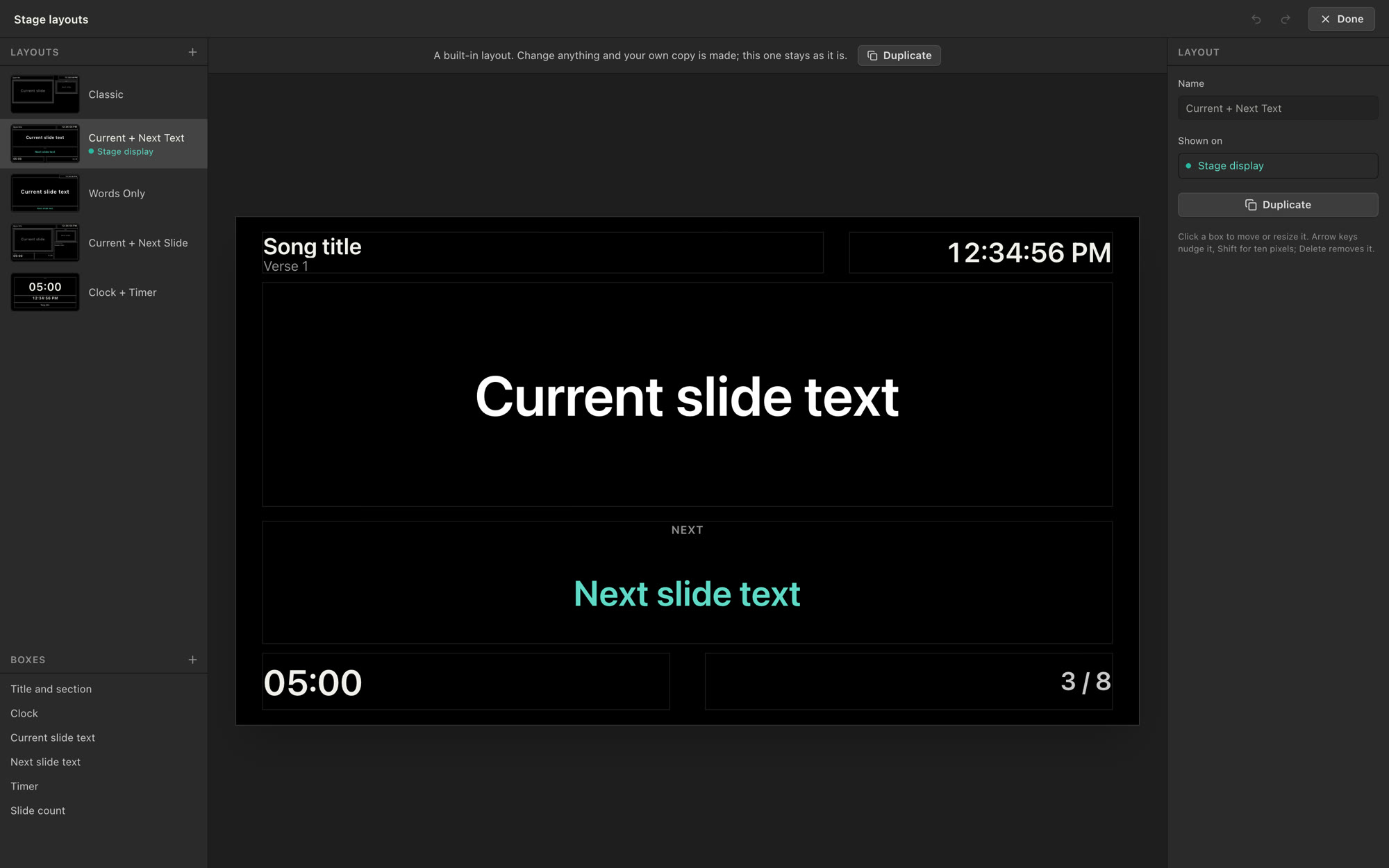
Start from a layout: the current and next slide, the words alone, or a clock and timer. Move any box, resize it, or build your own, and give every stage screen its own.
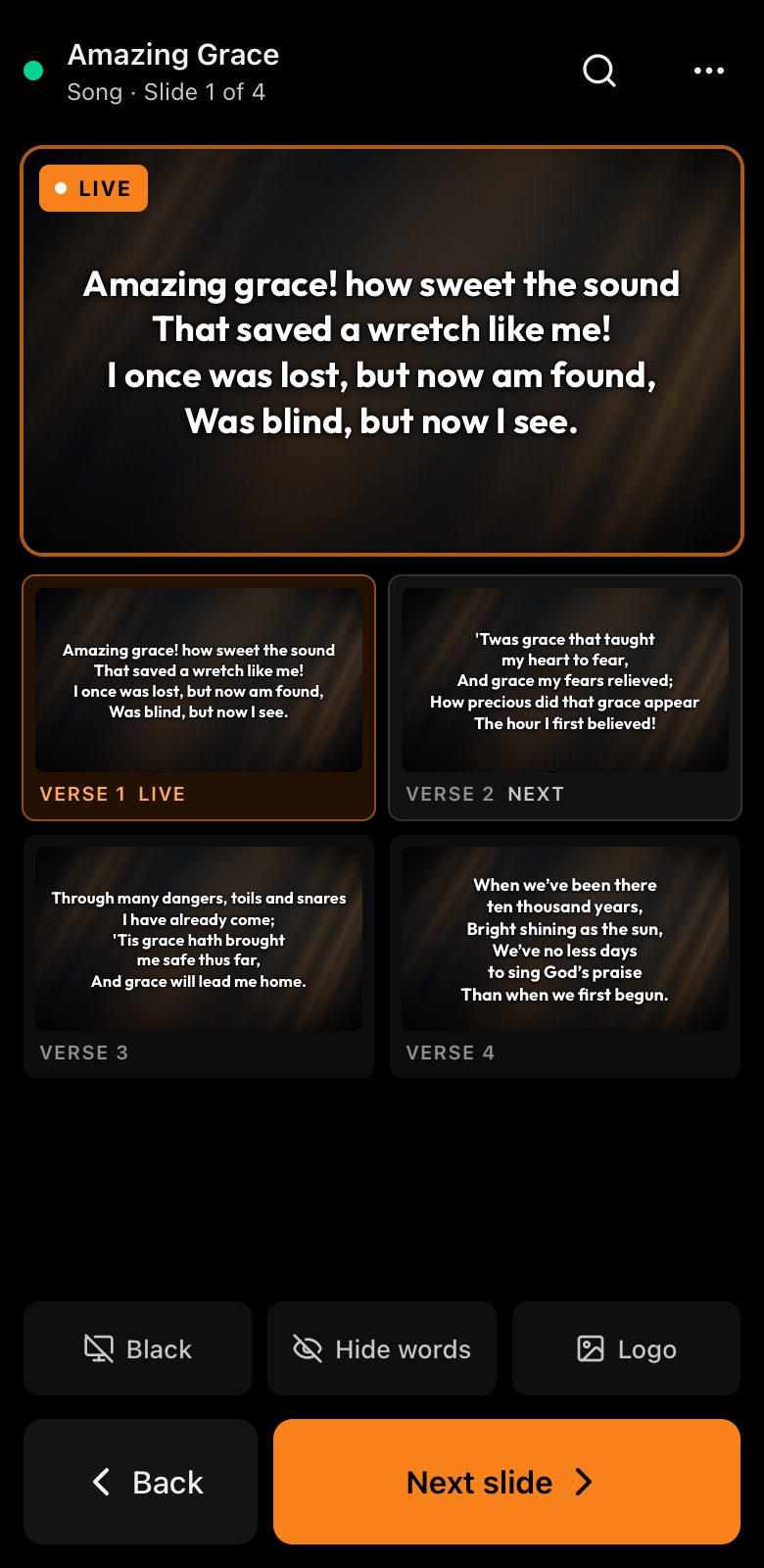
Scan a QR code with StagePro Connect and your phone is the remote. A PIN keeps it yours.
StagePro Connect turns a phone, a tablet or a TV into any screen StagePro feeds. Scan the QR code in Wireless Cast and it connects, over the church’s own Wi-Fi.
On a TV or a tablet, for an overflow room, the foyer or the back of the hall.
The current and next slide, a clock and a timer, for the people up front.
Each musician on their own phone, transposed live.
Next, back, black and search, in your hand, kept yours with a PIN.
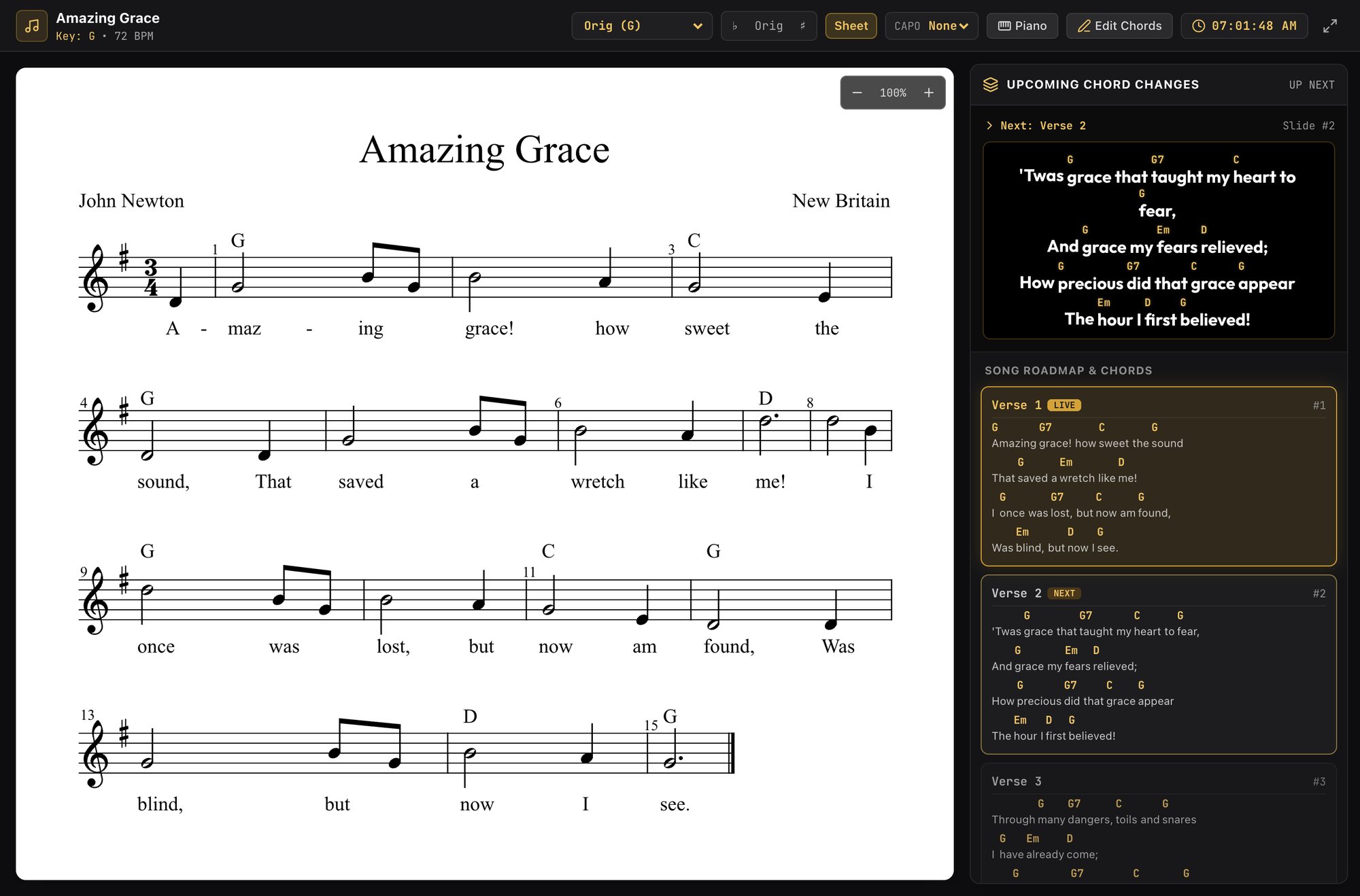
Attach a score to a song and any musician can swap from chords to notation on their own screen.
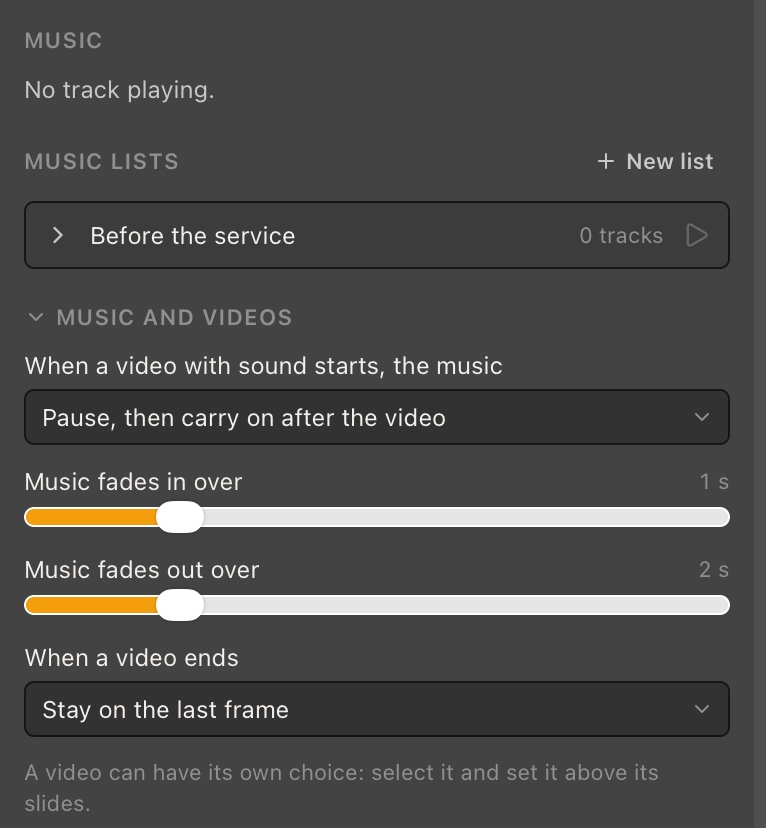
Make a list of songs for the welcome, the offering or the walk-out, and it plays under whatever is on screen.
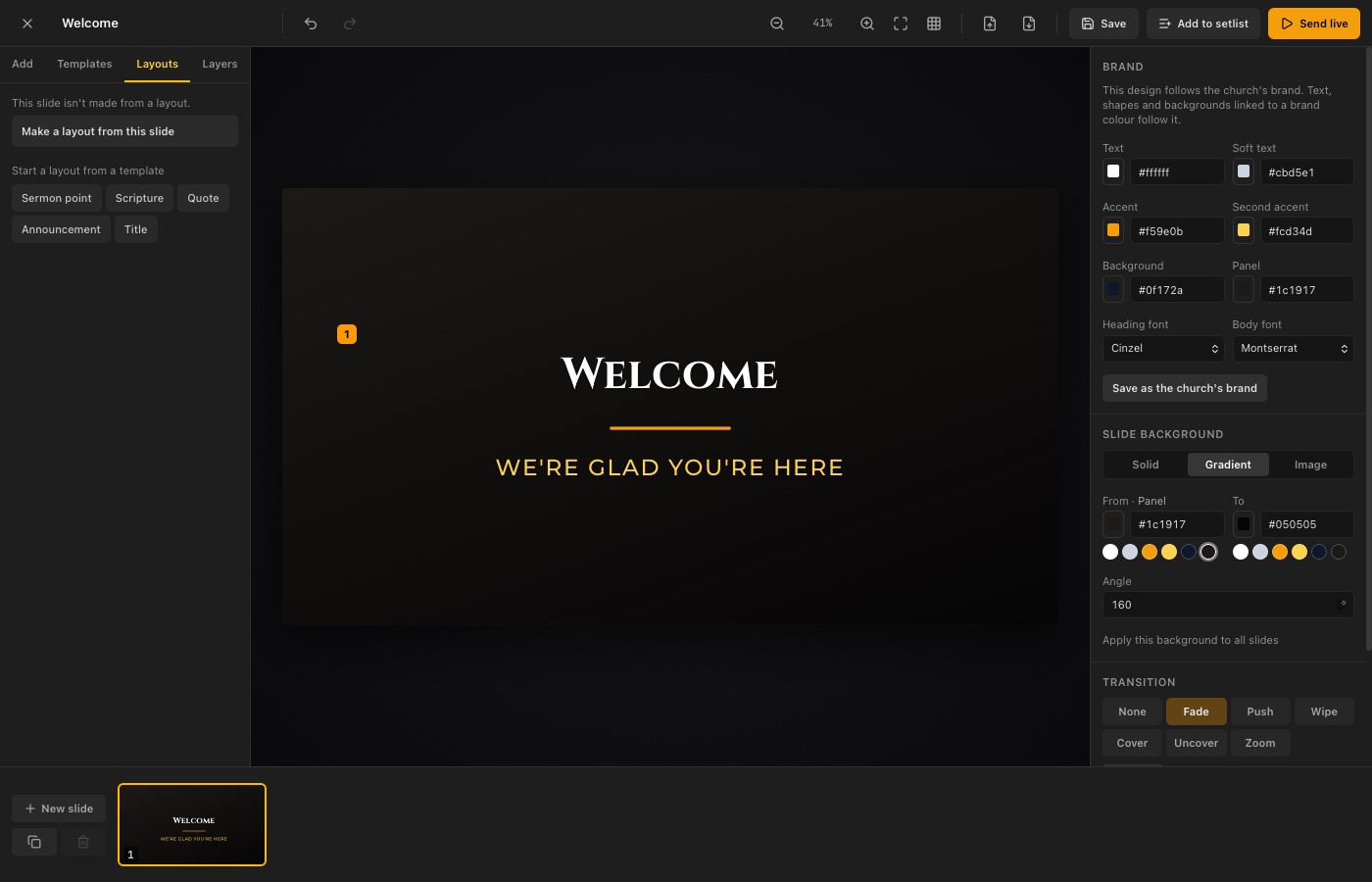
Design your own with layouts, the church’s brand and animations. Or open the speaker’s PowerPoint, Keynote or LibreOffice deck, and StagePro shows it as they made it, animations and videos included. No office app needed on the booth computer.
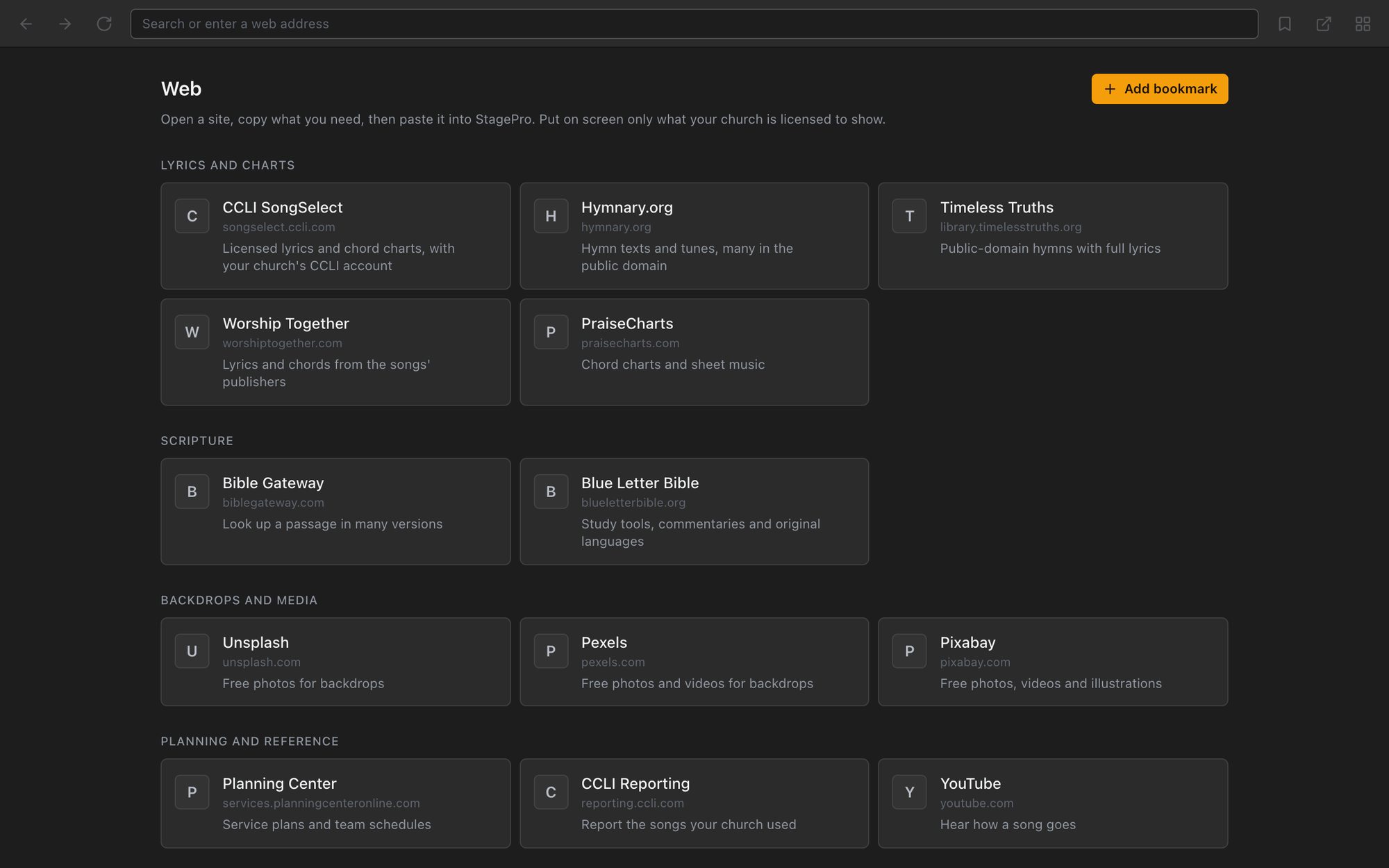
A browser built into the app, bookmarked for the sites a media team actually opens: lyrics, scripture, free photos and planning.
StagePro beside the apps most churches already pay for. Every figure was checked in September and October 2026 against each vendor’s own pages.
| What you need | StageProFree, runs offline | ProPresenterSubscription | EasyWorshipSubscription | ProclaimCloud-first, subscription |
|---|---|---|---|---|
| Cost | ||||
| What it costsPer month, before add-ons. | FreeFree plan. Plus is $9.99/mo per computer. | $29/moPer seat, subscription. Campus plans exist. | from$17.50/moSubscription, priced by attendance. | from$24.99/moSubscription. A free version exists. |
| Reliability | ||||
| Runs without internetCan the event survive the Wi-Fi going down? | Yes: No sign‑in, and nothing needs the internet during an event. Plus checks its license when online. | Partly: Account sign‑in, plus periodic license check‑ins. | Not confirmed: Not stated by the vendor. | Partly: Offline mode, but built around cloud sync. |
| Presenting tools | ||||
| Bible built inLook up a verse and put it on screen. | Yes: Offline KJV built in, 25 more to download. Find a verse from a few words; two versions side by side with Plus. | Yes: 130+ translations. | Yes: 90+ translations. | Not confirmed: Not confirmed. |
| Lower thirds and overlaysNames, titles and announcements over the live output. | Yes: Design once, then type the name at go-live. | Yes: Props layer for lower thirds and graphics. | Yes: Lower thirds for live streams. | Not confirmed: Not confirmed. |
| Streams from the appTo YouTube, Facebook or an RTMP address, without OBS. | Yes: With Plus: YouTube, Facebook, Vimeo or any RTMP or RTMPS address. | Yes: Capture streams a screen to an RTMP server or Resi. | Not built in: Through OBS, vMix or Wirecast, over NDI. | Not built in: Through OBS or an encoder, over NDI or SDI. |
| Records the serviceA video file, from the app itself. | Yes: With Plus: the picture and its sound, on its own or while streaming. | Yes: Capture records any screen, even while streaming. | Not confirmed: Not found on its own pages; its guide records in vMix. | Partly: Sermon audio and slide timing; video through OBS. |
| Camera inputsA live camera on screen, with words over it. | Yes: With Plus: a webcam, a capture card or an iPhone, behind the words. | Yes: Capture devices, SDI, NDI and Syphon inputs. | Yes: Feeds: capture cards, webcams and NDI sources. | Yes: Webcam, capture card or switcher behind the slide. |
| Sends over NDITo OBS, vMix or a switcher on the network. | Yes: With Plus: the broadcast picture. | Yes: Screens can be NDI outputs. | Yes: NDI in and out. | Yes: Any virtual screen can be an NDI output. |
| Phone remoteAdvance slides from the room. | Partly: With Plus, in the StagePro Connect app for iOS and Android (coming soon), and a PIN keeps it yours. | Yes: Remote app, included with a subscription. | Yes: Free remote app for iOS and Android. | Yes: Proclaim Remote app. |
| Stage display for the bandLyrics, chords and timers for people on stage. | Yes: Stage and chord windows on a second screen, or on phones and tablets over Wi‑Fi (early access). | Yes: Customizable stage displays. | Partly: Prompter view on an iPad, through the remote app. | Yes: Timers, notes, next slide and inline chords. |
| Where it runs | ||||
| Platforms | macOS, Windows | macOS, Windows | Windows, macOS | Mac and PC |
Free runs a one-screen service from start to finish. Plus gives every screen a picture of its own, per computer. Campus covers up to five computers at one church.
Everything a one-screen service asks for.
No card needed, and no time limit.
A picture for every screen: the room, the stage and the stream.
30 days free, then billed. Cancel any time. Activating needs internet once.
Plus on every computer in the booth — up to five at one church.
30 days free, then billed. Cancel any time. Activating needs internet once.
No. Everything runs on your own computer: your songs, the KJV Bible, the Strong’s lexicon, your themes and backdrops. There is nothing to sign in to and nothing to sync, so a Wi-Fi outage changes nothing mid-event. You need the internet to download the app and extra Bible versions, and once to activate a Plus license. After that, Plus checks its license when you’re online.
Free covers one screen: unlimited songs, the KJV Bible as verse slides or a scrolling reading, every free theme and backdrop, countdowns and alerts, one more Bible of your choice, and Theme Studio for type, outline, shadow and the CCLI credits line. Plus gives each screen its own picture: the room sees the words in your theme, the stage sees the layout you choose on up to six stage screens, and the stream gets its own look and can go straight to YouTube or Facebook, be recorded to a file, or go to OBS over NDI. Plus also adds cameras and scenes, sound for the stream with microphones and Listen, theme layouts, your logo and shapes on every slide, theme files to share, lower thirds with fill-in fields, overlays, the Strong’s lexicon and every Bible version.
Each computer that runs a screen needs its own license. Two computers? Get Plus for each. Three or more? Campus covers up to five computers at one church, such as the booth, the stage, the stream and a laptop for preparing at home, for $24.99 a month or $249 a year, with one license key for the whole team. You can move a license to a new computer yourself, any time.
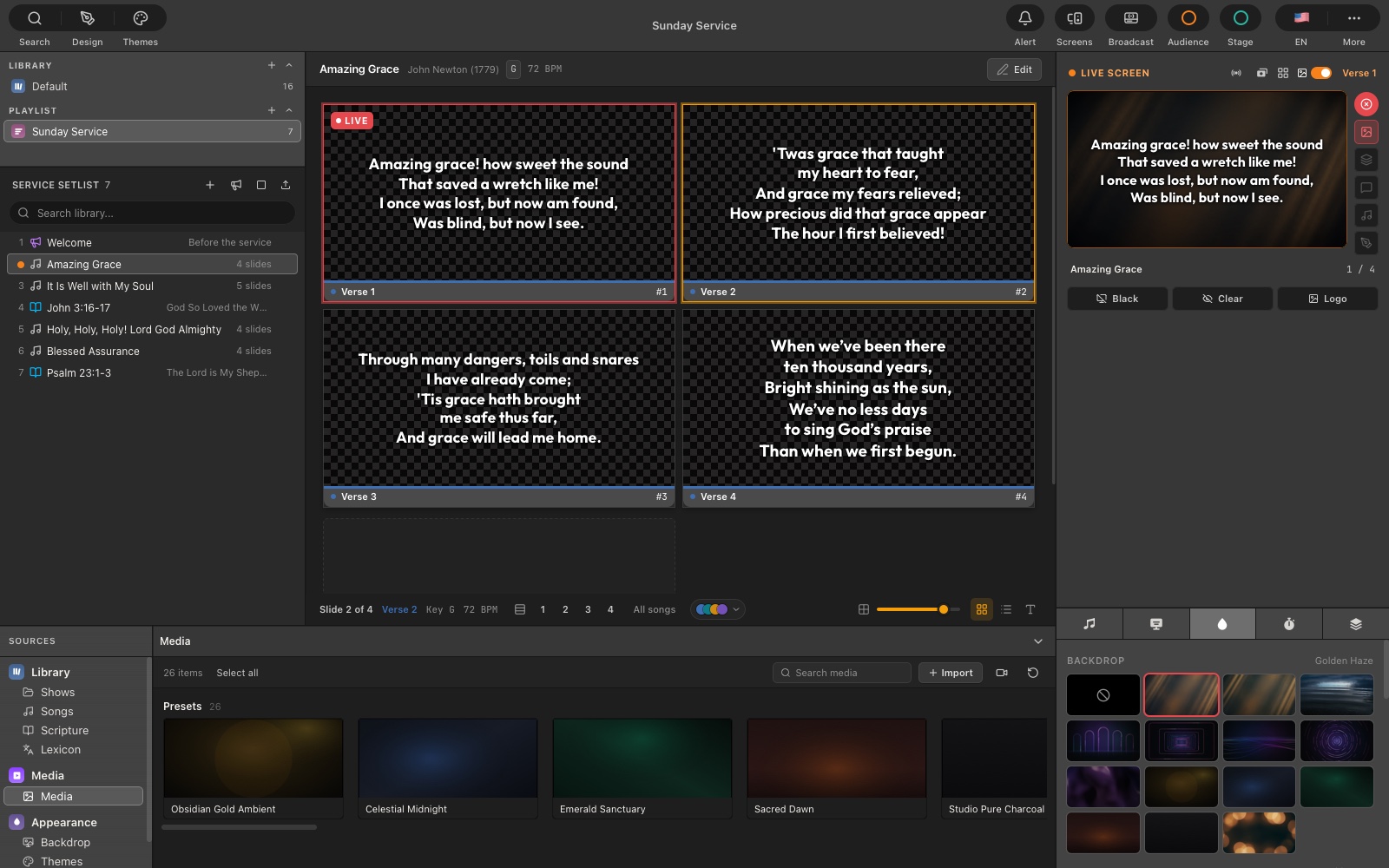
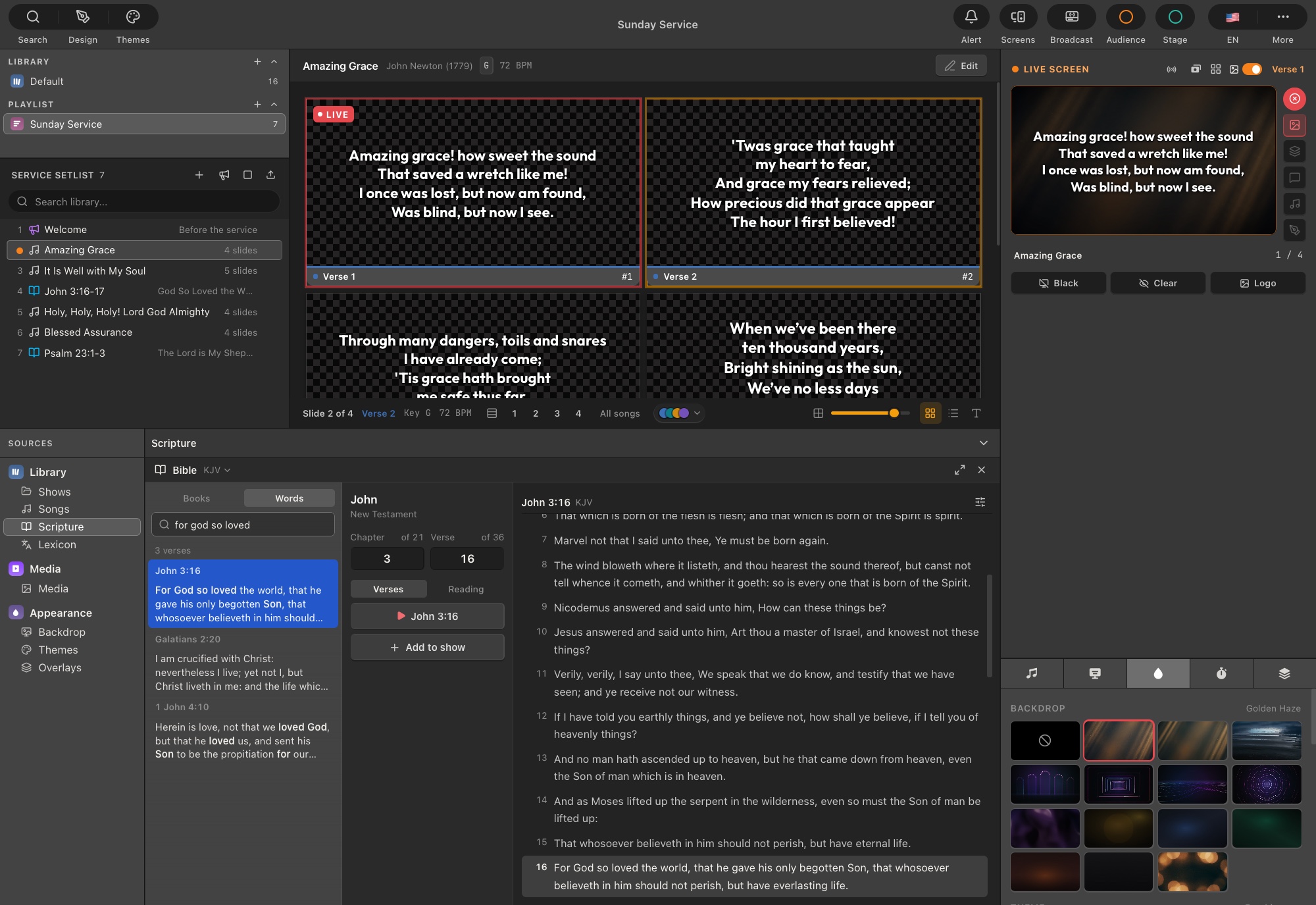
That is who it is built for. It is one window: the service on the left, the live screen on the right, and songs, scripture and media in a drawer below. Build the service, pick a look, press Enter. The preview shows each slide first, and nothing reaches the screen until you send it.
Yes. Import ChordPro, OpenLyrics or FreeWorship XML, OnSong and plain text files, or a StagePro backup. The built-in browser can also turn lyrics you select on a page, or a ChordPro file you download, into a new song. Ten public-domain hymns come with the app to start from.
Yes, with Plus. Put the chord view on a second screen, or let each musician scan a QR code with the StagePro Connect app and follow along on their own phone, with live transpose, capo voicings and the Nashville Number System. StagePro Connect is coming soon to the App Store and Google Play.
Yes, with Plus, in two ways. StagePro can send its broadcast picture across your network to OBS, vMix and other software that is compatible with NDI®, or OBS can add StagePro’s stream page as a browser source: solid black for keying, with lyrics or lower thirds in their own stream theme. StagePro can also stream straight to YouTube or Facebook itself, without OBS. NDI® is a trademark of Vizrt NDI AB. StagePro is not a product of, or sponsored by, them. About NDI
Yes, with Plus. Press Record in the Broadcast menu and StagePro saves the broadcast picture and its sound to a video file on the computer. It can record on its own, or keep a copy every time you stream.
Yes, with Plus. A webcam, a camera on a capture card or an iPhone can go full screen or behind the words, on the room screen, the stage display and the stream. Set up a scene in preview, then Take it live with a cut or a fade.
No. There is no StagePro account, no cloud, and nothing that tracks how you use it. Your song library and everything you design stay on your computer. The only thing StagePro sends is the Plus license check: your license key and this computer’s name, so you can see which computers use your license. Payments are handled by Polar.
In the StagePro group on Facebook: ask a question, share your setup, and see how other churches run their Sundays. We’re there too.
Yes, please. Suggest it on the ideas board and vote for what other churches have asked for. We read every idea, and the board shows what’s planned and what’s done.
A church media team. They built it for their own services and events, and they still run it there.
No account, no contract, and no internet needed on the day.
Made by a church media team who still run it in their own services.